Book Import to NotebookLM
PDF Books
ActivePDF mode is built for long books and documents that need either a fast whole-book import or a curated import based on generated or manual page ranges.
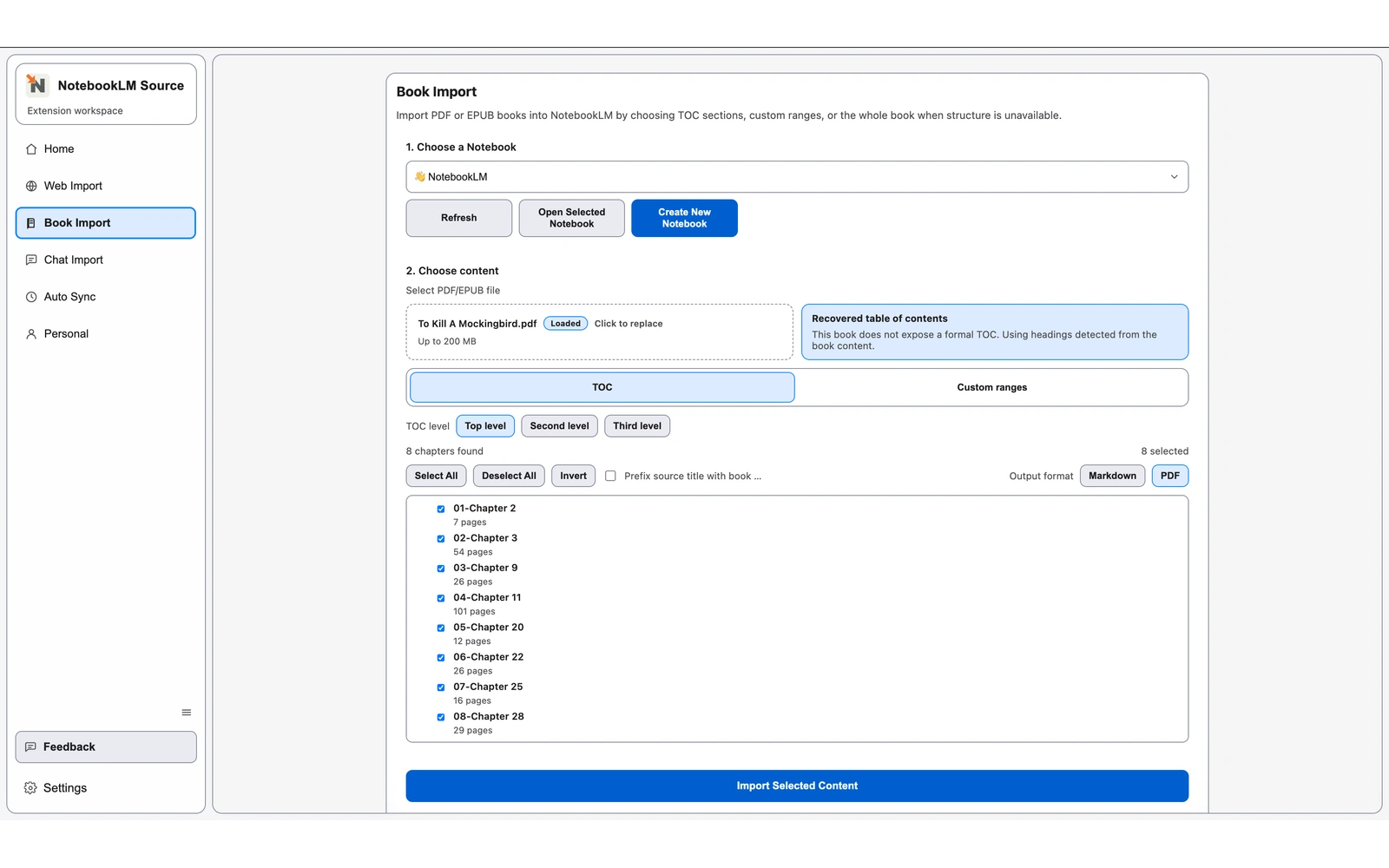
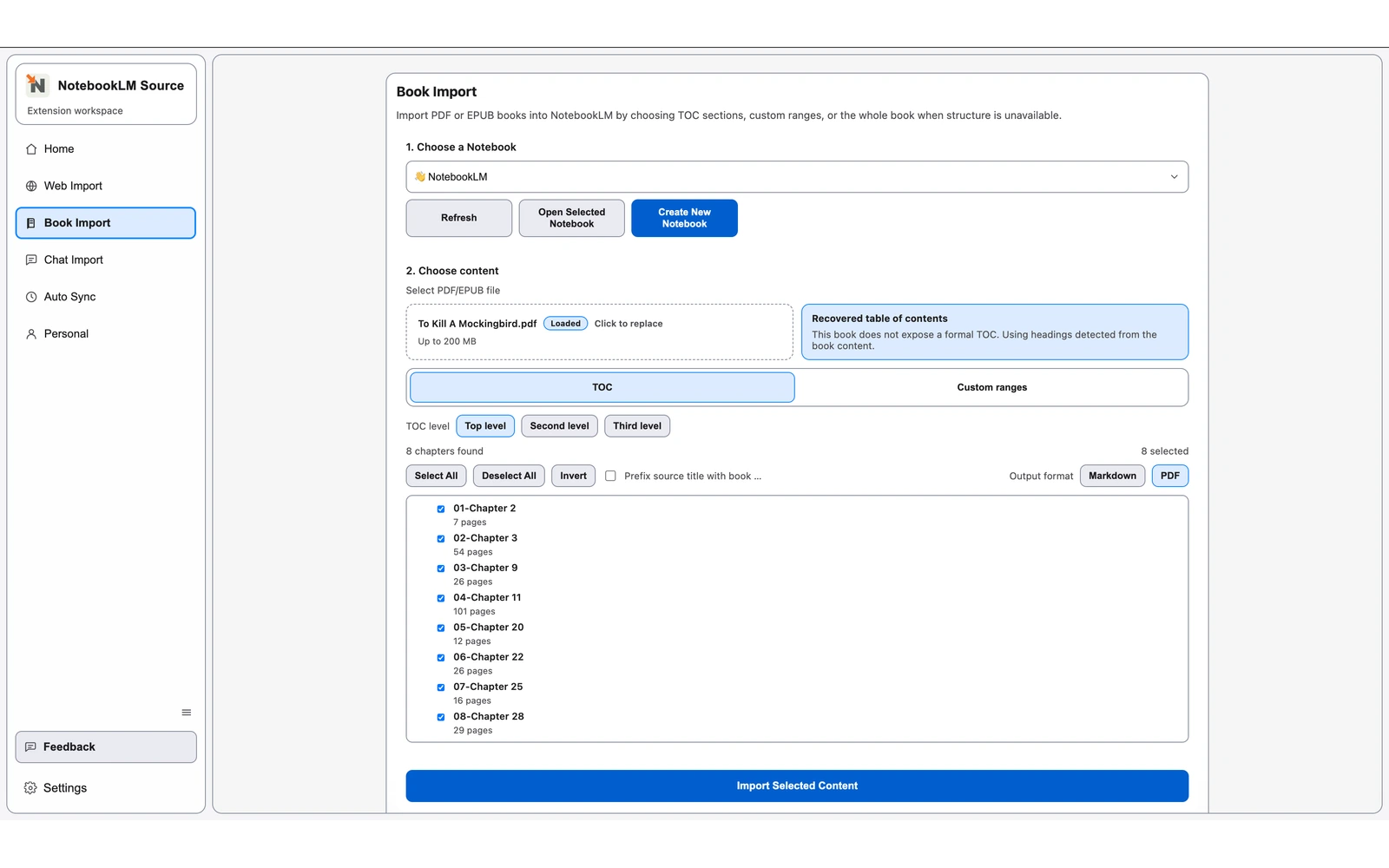
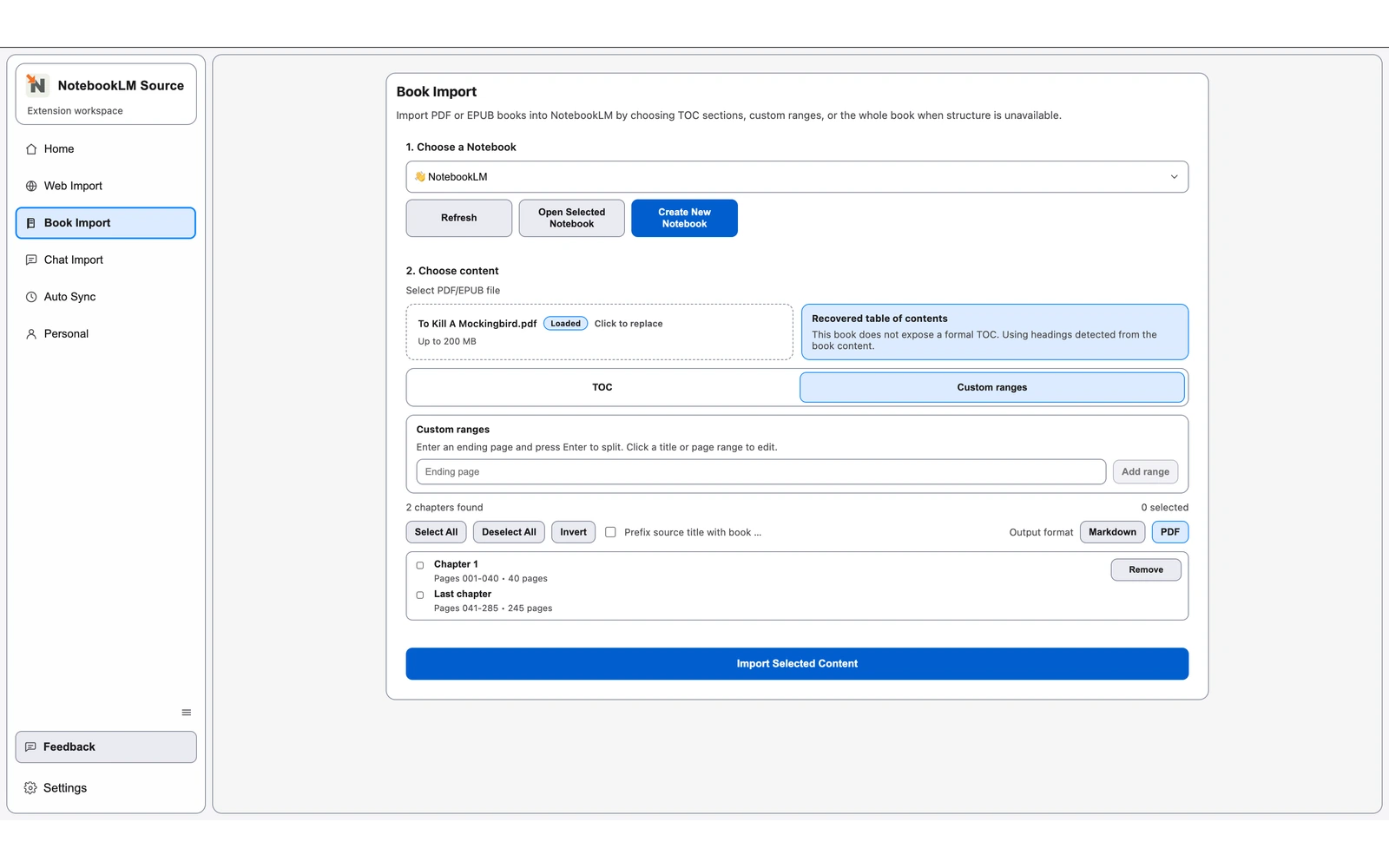
Whole-book import when the PDF does not expose a reliable table of contents.
Generated page-range fallback plus custom page ranges for curated source groups.
PDF or Markdown output with optional book-name title prefixes for cleaner NotebookLM source lists.
- 1
Install the Chrome extension and open Book Import.
- 2
Choose the target notebook, then upload a PDF.
- 3
Keep the whole file, use generated page ranges, or split custom ranges.
- 4
Choose PDF or Markdown output for the imported sources.
- 5
Run the import and review the new sources in NotebookLM.
Related Pages
Continue with closely related pages in the same topic cluster.
- Book Import Overview for NotebookLM
Review the Chrome extension import options for PDF and EPUB book sources in NotebookLM.
- EPUB Book Import for NotebookLM
Import the full EPUB or selected chapters with TOC recovery plus PDF or Markdown output.
- Browse Full Directory
Open the complete directory to discover more indexable pages.